


Introduction
If your Update Drivers in Windows Windows 11 PC feels slow, devices stop working, or random errors appear, outdated drivers are often the hidden cause. I’ve personally fixed countless issues—WiFi not connecting, Bluetooth failing, screen flickering—simply by updating the correct driver. Yet many users either ignore driver updates or install unsafe tools that create more problems.
Drivers act as translators between Windows and your hardware. When they’re outdated or corrupted, even powerful systems can behave poorly. This guide explains how to update drivers in Windows 11 using safe, proven methods recommended by professionals. You’ll learn when to use automatic updates, when manual installation is better, and how to avoid common driver update mistakes—all without risking system stability.
What Are Drivers and Why Are They Important?


Drivers allow Windows 11 to communicate with:
Graphics cards
WiFi & Bluetooth adapters
Printers & USB devices
Audio and display hardware
Outdated drivers can cause:
System crashes
Hardware not detected
Performance drops
Signs Your Drivers Need Updating
Hardware Not Working Properly
WiFi disconnects, Bluetooth missing, printer errors.
Blue Screen or System Freezes
Faulty drivers are a leading cause of BSOD errors.
Slow Performance or Lag
Graphics and chipset drivers impact speed.
Internal link: How to Speed Up a Slow Laptop on Windows 10
How to Update Drivers in Windows 11 (Step-by-Step)
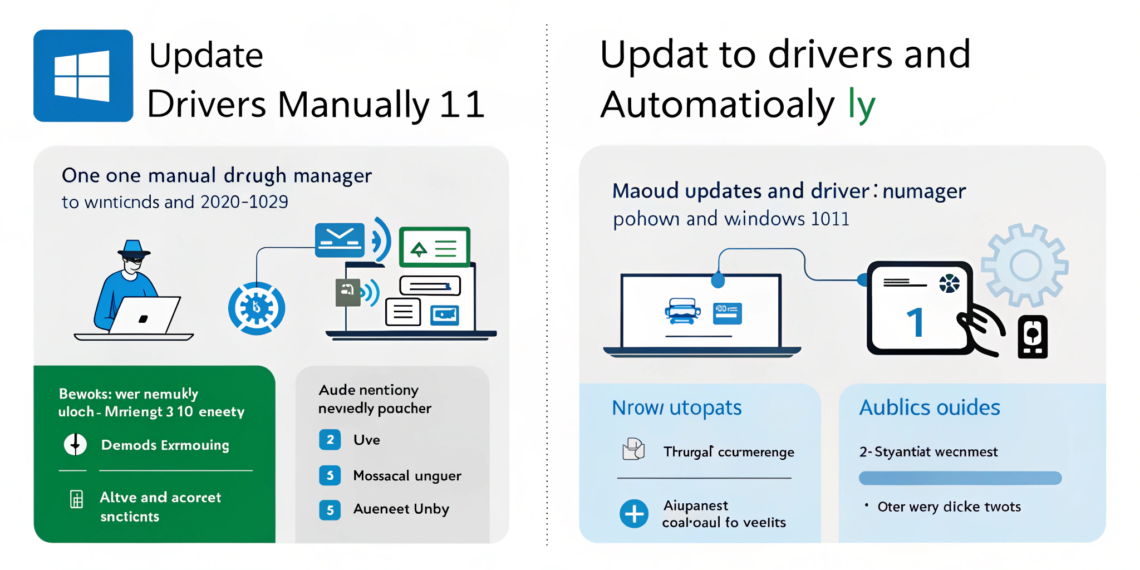
Method 1: Update Drivers Using Windows Update (Safest)
Steps:
Settings → Windows Update
Click Advanced options
Select Optional updates
Install available driver updates
This method is safest for most users.
Method 2: Update Drivers Using Device Manager (Manual)
Steps:
Right-click Start → Device Manager
Expand device category
Right-click device → Update driver
Select Search automatically
Useful when a specific device is malfunctioning.
Method 3: Download Drivers from Manufacturer Website (Best Accuracy)
Recommended sources:
Intel
AMD
NVIDIA
Realtek
From experience, manufacturer drivers solve issues Windows Update misses.
External reference: Microsoft – Device Driver Support
Method 4: Update Graphics Drivers Separately
Graphics drivers affect:
Gaming
Video playback
Screen resolution
Use:
NVIDIA GeForce Experience
AMD Adrenalin
Intel Driver Support Assistant
Internal link: Best Graphics Settings for PC Gaming
Method 5: Use Trusted Driver Update Software (Optional)
Only use reputable tools:
Driver Booster (official version)
Snappy Driver Installer
Avoid cracked or unknown driver tools.
Internal link: How to Identify Online Scams
Common Driver Update Mistakes to Avoid
Installing drivers from random websites
Updating BIOS unnecessarily
Using multiple driver tools
Ignoring restore points
Always create a restore point before manual updates.
How to Prevent Driver Issues in the Future
Enable Windows Update
Update drivers quarterly
Use official manufacturer sources
Avoid unnecessary driver changes
Internal link: How to Protect Personal Data Online
FAQs
Q1: Does Windows 11 update drivers automatically?
Yes, but some drivers require manual updates.
Q2: Can outdated drivers slow down my PC?
Yes, especially graphics and chipset drivers.
Q3: Should I use driver update software?
Only trusted tools—manual updates are safer.
Q4: How often should drivers be updated?
Every 3–6 months or when issues appear.
Q5: Can driver updates cause problems?
Rarely, but creating a restore point prevents damage.