


Introduction
Accidentally deleting important files is a nightmare most PC users experience at least once. I’ve personally seen people lose work documents, photos, or projects with a single wrong click—and immediately assume the data is gone forever. The truth is, deleted files are often recoverable, especially if you act quickly and use the right method.
When a file is deleted, Windows usually removes its reference—not the actual data—until it’s overwritten. This guide explains how to recover deleted files from PC using safe, beginner-friendly methods, including built-in Windows tools and trusted recovery software. Whether your files were deleted accidentally, emptied from the Recycle Bin, or lost due to a system issue, this step-by-step guide will help you recover them without causing further damage.
Can Deleted Files Really Be Recovered?

Yes—in many cases.
Deleted files remain on your storage drive until new data overwrites them. That’s why the first rule of data recovery is:
Stop using the drive immediately after deletion.
From real-world recovery cases, files deleted minutes or hours ago have a very high chance of recovery.
Common Reasons Files Get Deleted on PC
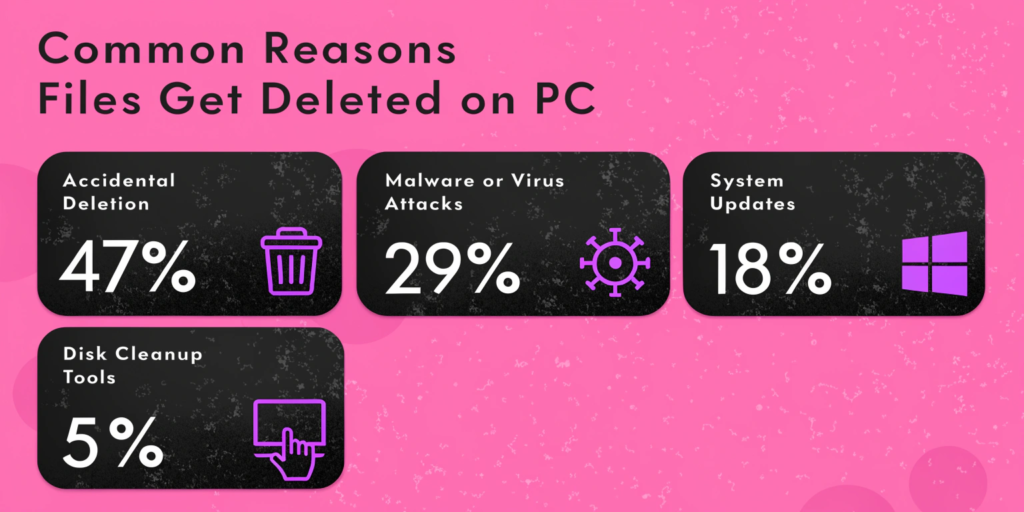
Accidental Deletion
Wrong file selection or Shift + Delete.
Emptying Recycle Bin
Files removed permanently from Bin.
System Crash or Update Failure
Unexpected shutdowns may corrupt file indexes.
Malware or Virus Attack
Some malware deletes or hides files.
Internal link: Best Antivirus Software for Windows 11
How to Recover Deleted Files from PC (Step-by-Step)
Method 1: Check the Recycle Bin (First & Fastest)
Steps:
Open Recycle Bin
Locate deleted file
Right-click → Restore
This works only if the bin wasn’t emptied.
Method 2: Use Windows File History (If Enabled)
Steps:
Go to file’s original folder
Right-click → Restore previous versions
Select version → Restore
Many users forget File History was enabled—it’s worth checking.
External reference: Microsoft Support – File History
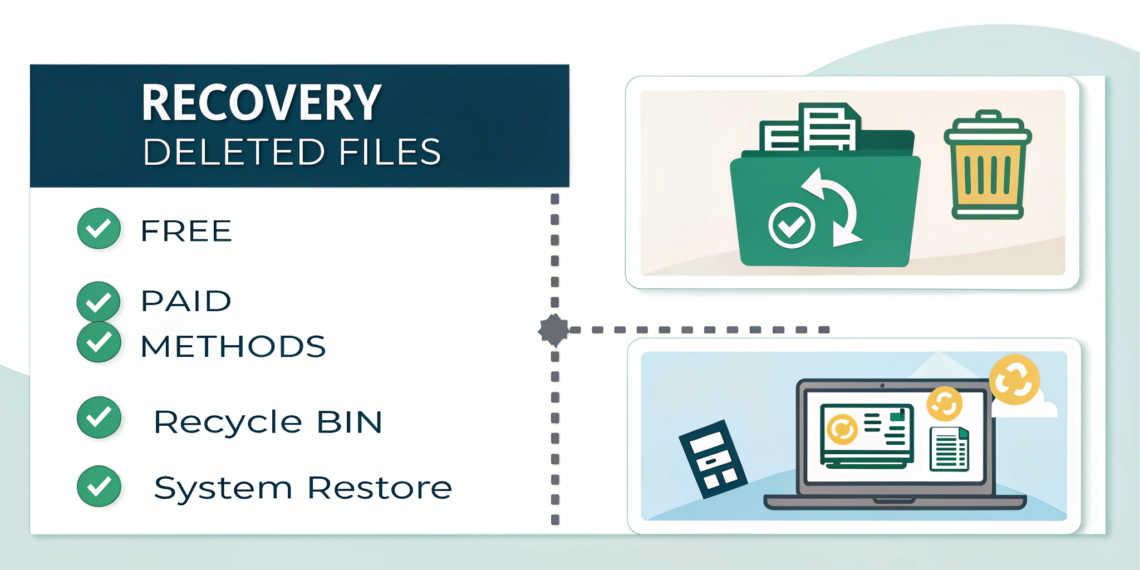
Method 3: Recover Using Free Data Recovery Software
Trusted free tools:
Recuva
EaseUS Free Data Recovery
Disk Drill (free limit)
Important tip (from experience):
Install recovery software on a different drive or USB, not the same disk.
Method 4: Recover Permanently Deleted Files (Shift + Delete)
For files deleted permanently:
Steps:
Use recovery software
Scan the affected drive
Preview files before restoring
Internal link: How to Fix Windows Startup Error (file system issues)
Method 5: Restore Files from Cloud Backup
If you use:
Google Drive
OneDrive
Dropbox
Check:
Trash folder
Version history
Internal link: Best Cloud Storage for Personal Use
Method 6: Use Paid Recovery Tools (Advanced Cases)
Paid tools offer deeper scanning:
Stellar Data Recovery
EaseUS Pro
In professional recovery cases, paid tools recover files free tools miss.
Common Data Recovery Mistakes (Avoid These)
Installing recovery software on same drive
Continuing to use the PC heavily
Using cracked recovery software
Reinstalling Windows immediately
Internal link: How to Identify Online Scams
How to Prevent File Loss in the Future
From experience, prevention saves stress.
Enable File History
Use cloud backups
Avoid forced shutdowns
Keep antivirus updated
Internal links:
How to Protect Personal Data Online
Best Cloud Storage for Personal Use
FAQs
Q1: Can permanently deleted files be recovered?
Yes, if they haven’t been overwritten and you act quickly.
Q2: Does recovery software damage my PC?
No, trusted recovery tools are safe if used correctly.
Q3: How long do deleted files stay recoverable?
Until new data overwrites the storage space—time varies.
Q4: Can I recover files after reinstalling Windows?
It’s possible but much harder and less reliable.
Q5: Are free recovery tools enough?
For recent deletions, yes. For deep recovery, paid tools work better.