


Introduction
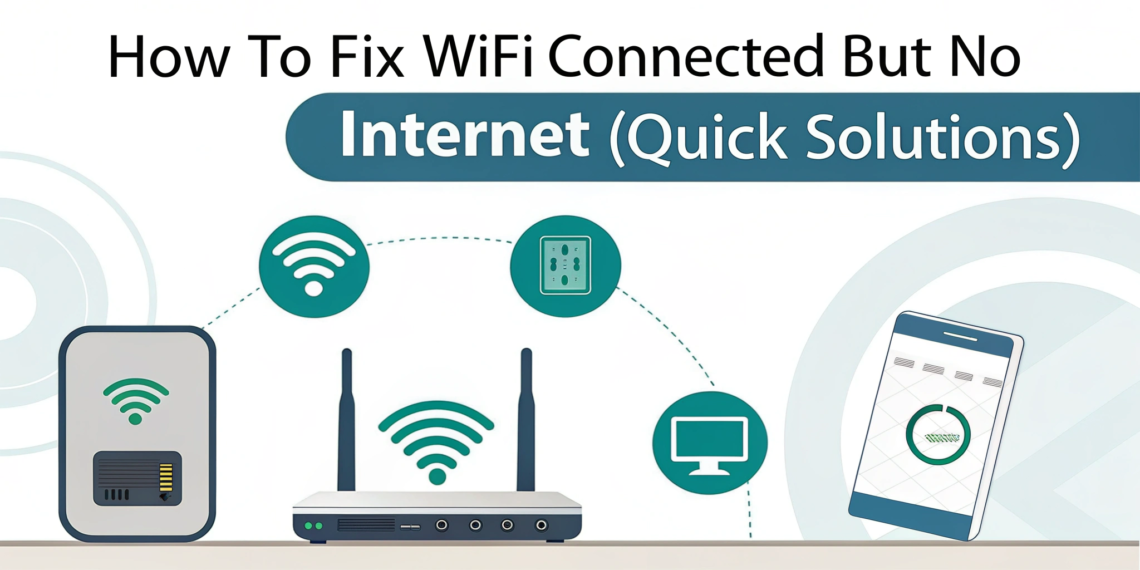
Few tech problems are more frustrating than seeing your device connected to WiFi wifi connected but—but nothing loads. I’ve personally dealt with this issue multiple times, and in most cases, the internet connection itself was fine, but a small network or device setting caused the problem. This issue can appear on laptops, phones, tablets, and even smart TVs, making it feel confusing and random.
The good news is that “WiFi connected but no internet” is usually easy to fix once you understand where the problem is coming from. It could be your router, your internet service provider, or the device you’re using. This guide explains how to fix WiFi connected but no internet using clear, step-by-step solutions that work across Windows, Android, and iOS—without calling your ISP or resetting everything blindly.
What Does “WiFi Connected but No Internet” Mean?

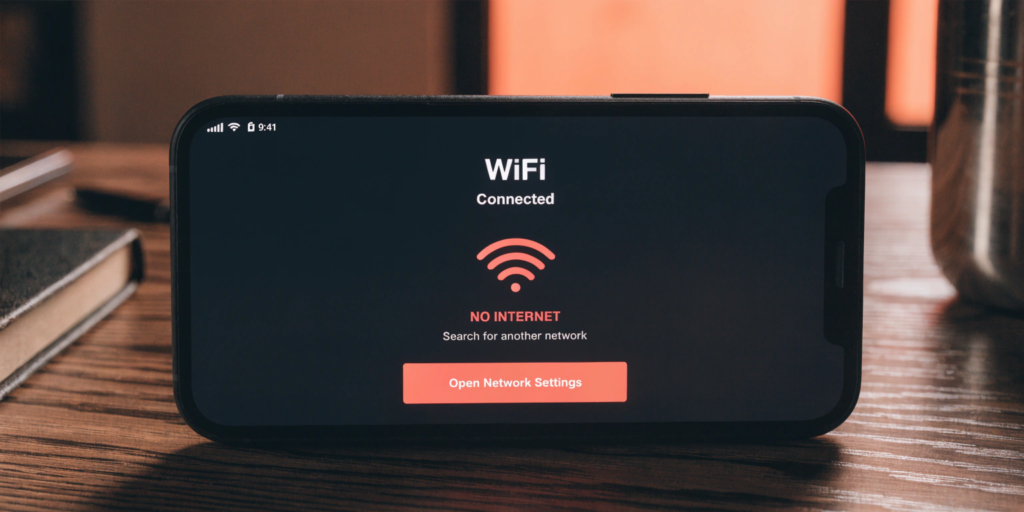
This message means your device is connected to the local WiFi network, but the network itself can’t access the internet.
Common signs include:
Websites not loading
Apps showing “no connection”
WiFi icon connected but with warning symbol
Common Causes of This WiFi Problem
Router or Modem Issues
Temporary glitches or overheating routers can block internet access.
ISP Outage
Sometimes the problem isn’t on your end.
DNS Configuration Errors
Incorrect DNS settings prevent website resolution.
IP Address Conflicts
Devices may fail to receive a valid IP address.
Antivirus or Firewall Blocking Internet
Security software may mistakenly block traffic.
Internal link: Best Antivirus Software for Windows 11
: How to Fix WiFi Connected but No Internet (Step-by-Step)
Method 1: Restart Router, Modem & Device (Most Effective)
Steps:
Turn off modem and router
Wait 30–60 seconds
Turn them back on
Restart your device
From experience, this fixes the issue in more than half of cases.
Method 2: Check Internet Service Provider (ISP)
Use mobile data to check ISP outage pages
Call ISP support if needed
Don’t spend hours troubleshooting if the ISP is down.
Method 3: Forget and Reconnect to WiFi
Steps:
WiFi Settings → Forget Network
Reconnect and enter password again
This refreshes network settings.
Method 4: Change DNS Settings (Highly Effective)
Recommended DNS:
Google DNS: 8.8.8.8 / 8.8.4.4
DNS issues are a very common hidden cause.
External reference: Google Public DNS Documentation
Method 5: Reset Network Settings
Windows:
Settings → Network → Network Reset
Android / iOS:
Reset network settings (WiFi & mobile only)
Internal link: How to Speed Up a Slow Laptop on Windows 10
Method 6: Disable VPN, Firewall, or Antivirus Temporarily
Some VPNs block internet access.
Internal link: Online Privacy Tips for Beginners
Method 7: Update Network Drivers (Windows Users)
Outdated drivers cause connectivity issues.
Internal link: How to Update Drivers in Windows 11
Common Mistakes to Avoid
Resetting router repeatedly
Changing random advanced settings
Ignoring ISP outage possibility
Installing fake “WiFi fixer” apps
Internal link: How to Identify Online Scams
How to Prevent WiFi Internet Issues in the Future
Keep router firmware updated
Place router in open area
Use strong WiFi passwords
Avoid too many connected devices
Internal link: How to Secure WiFi Network at Home
FAQs
Q1: Why does WiFi say connected but no internet?
Because the device connects to the router, but the router can’t access the internet.
Q2: Can DNS change fix internet issues?
Yes, switching to public DNS often resolves connection problems.
Q3: Does restarting the router really help?
Yes. It clears temporary network glitches.
Q4: Why does WiFi work on one device but not another?
The issue is likely device-specific network settings.
Q5: Should I reset my router?
Only as a last resort after trying all other fixes.