
Introduction
A Windows startup error can instantly turn a normal day into a stressful one. You press the power button, expect your PC to load—and instead, you’re stuck on a black screen, endless loading loop, or error message. If this has happened to you, you’re not alone. Startup errors are one of the most common Windows problems, especially after updates, sudden shutdowns, or power failures.
The good news? In most cases, you don’t need to reinstall Windows or visit a repair shop. From my experience fixing dozens of Windows systems, startup errors are often caused by small issues that can be resolved with the right steps. This guide explains how to fix Windows startup error safely, using beginner-friendly methods that protect your data and actually work.
What Is a Windows Startup Error?
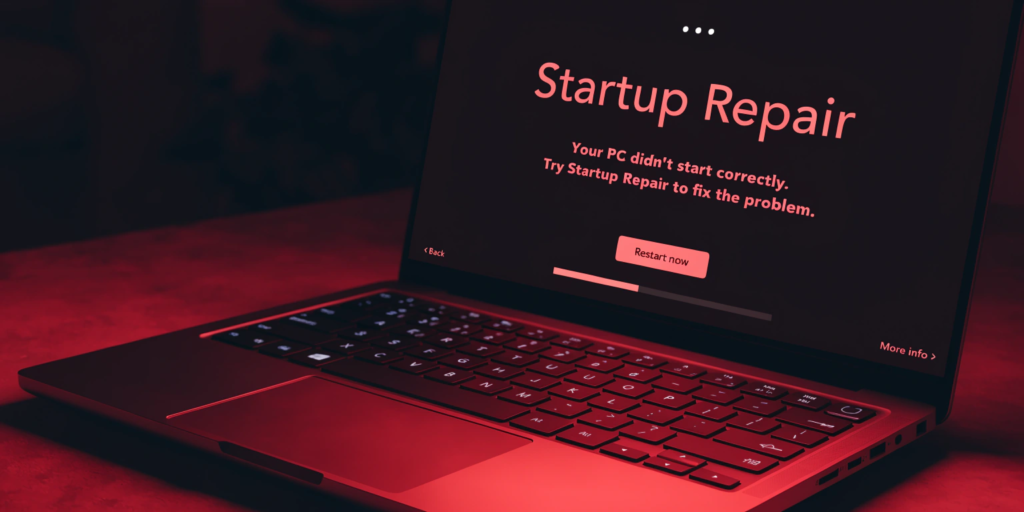
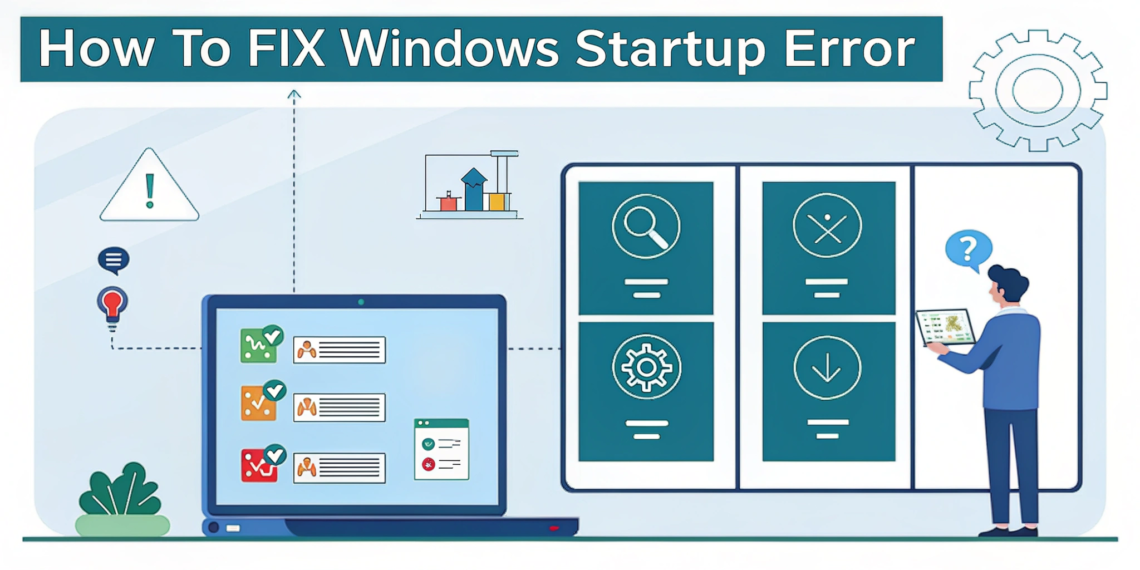
A Windows startup error occurs when your computer fails to load the operating system properly. Instead of reaching the desktop, you may see:
- “Automatic Repair couldn’t repair your PC”
- A black or blue screen
- Endless loading dots
- “Boot device not found” message
These errors usually indicate a problem with system files, drivers, updates, or hardware configuration.
Common Causes of Windows Startup Errors
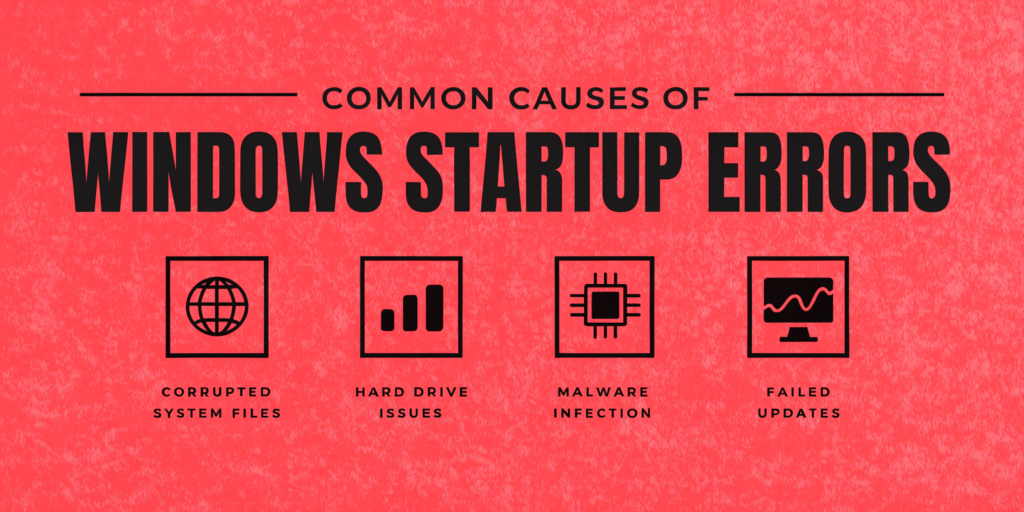
Corrupted System Files
Improper shutdowns or malware can damage essential Windows files required for booting.
Failed Windows Updates
Interrupted or incompatible updates often break startup processes.
Driver Conflicts
Outdated or faulty drivers—especially graphics or storage drivers—can prevent Windows from loading.
Hardware Issues
Loose hard drives, faulty RAM, or failing SSDs may trigger startup errors.
How to Fix Windows Startup Error (Step-by-Step)
Method 1: Use Windows Startup Repair (Recommended First Step)
Steps:
- Turn off your PC completely
- Turn it on and force shut down during loading (repeat 2–3 times)
- Windows Recovery Environment (WinRE) will open
- Go to Troubleshoot → Advanced Options → Startup Repair
- Select your Windows account and wait
Why it works: Startup Repair automatically fixes common boot-related issues without affecting files.
Method 2: Boot Into Safe Mode
Safe Mode loads Windows with minimal drivers.
Steps:
- Open WinRE
- Go to Advanced Options → Startup Settings → Restart
- Press F4 for Safe Mode
- If Windows boots, uninstall:
- Recent updates
- Problematic drivers
- Suspicious software
Internal link: How to Update Drivers in Windows 11
Method 3: Run System File Checker (SFC)
Corrupted system files are a major cause of startup errors.
Steps:
- Open WinRE
- Select Command Prompt
- Type:
- sfc /scannow
- Press Enter and wait
From experience, this method alone fixes many boot issues caused by file corruption.
Method 4: Use DISM Tool (Advanced Fix)
If SFC doesn’t work, use DISM.
Command:
DISM /Online /Cleanup-Image /RestoreHealth
This downloads and repairs damaged Windows components.
External reference: Microsoft Learn – Windows Recovery Tools
Method 5: Uninstall Recent Windows Updates
Sometimes updates break startup compatibility.
Steps:
- WinRE → Advanced Options → Uninstall Updates
- Remove the latest quality update
Method 6: Check Hardware Connections
This is often overlooked.
- Re-seat SSD/HDD cables
- Remove external devices
- Test RAM sticks one by one
I’ve fixed multiple “dead” PCs by simply reseating the storage drive.
Common Mistakes to Avoid
- Reinstalling Windows immediately
- Using untrusted repair tools
- Ignoring data backup
- Randomly changing BIOS settings
Internal link: How to Recover Deleted Files from PC
How to Prevent Windows Startup Errors in the Future
- Keep Windows and drivers updated
- Use a reliable antivirus
- Avoid forced shutdowns
- Back up files using cloud storage
Internal links:
Best Antivirus Software for Windows 11
Best Cloud Storage for Personal Use
FAQs
Q1: Why does Windows fail to start properly?
Windows may fail to start due to corrupted system files, faulty drivers, failed updates, or hardware issues like a failing hard drive.
Q2: Can Startup Repair fix boot errors?
Yes, Startup Repair can automatically detect and fix many common boot problems, especially after updates or power interruptions.
Q3: Will fixing startup errors delete my files?
Most methods in this guide do not delete personal files. Data loss usually occurs only during full reinstallation.
Q4: How long does Startup Repair take?
Typically 10–30 minutes, depending on system speed and issue severity.
Q5: When should I reinstall Windows?
Only if all repair methods fail and hardware is confirmed healthy.