
Introduction
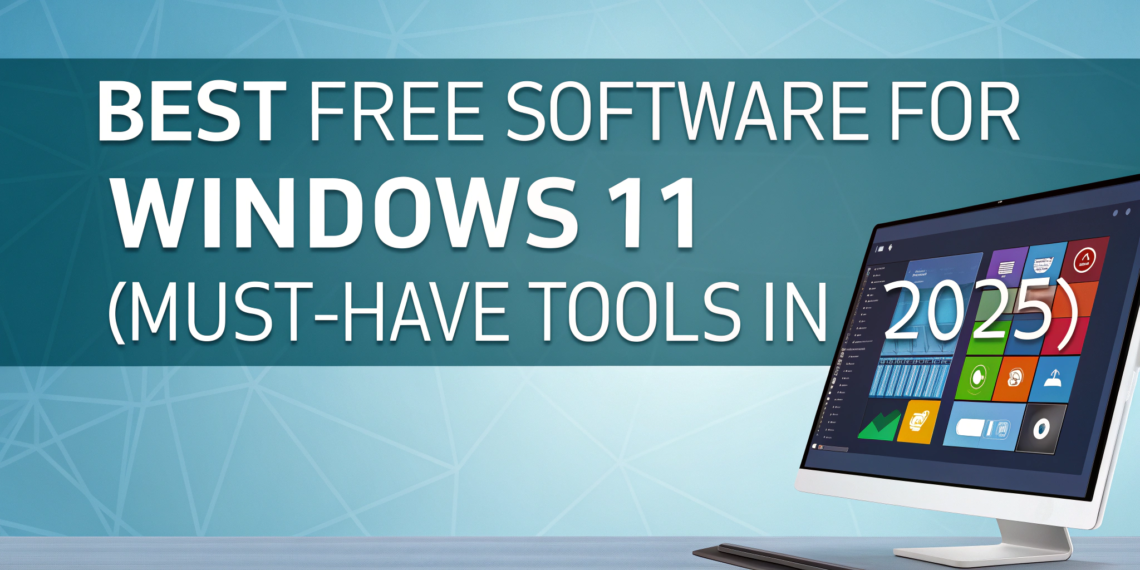
Windows 11 is fast, modern, and powerful—but the right software makes all the difference. When I first upgraded to Windows 11, I quickly realized that built-in apps weren’t enough for everyday work like editing files, protecting my PC, or creating content. The good news? You don’t need to spend money to unlock your system’s full potential.
This guide covers the best free software for Windows 11, carefully selected for performance, safety, usability, and real-world value. Whether you’re a student, freelancer, content creator, or casual user, these tools help you work smarter without slowing down your PC or risking security. Every recommendation here is free, trusted, and beginner-friendly.
What Makes Good Free Software for Windows 11?
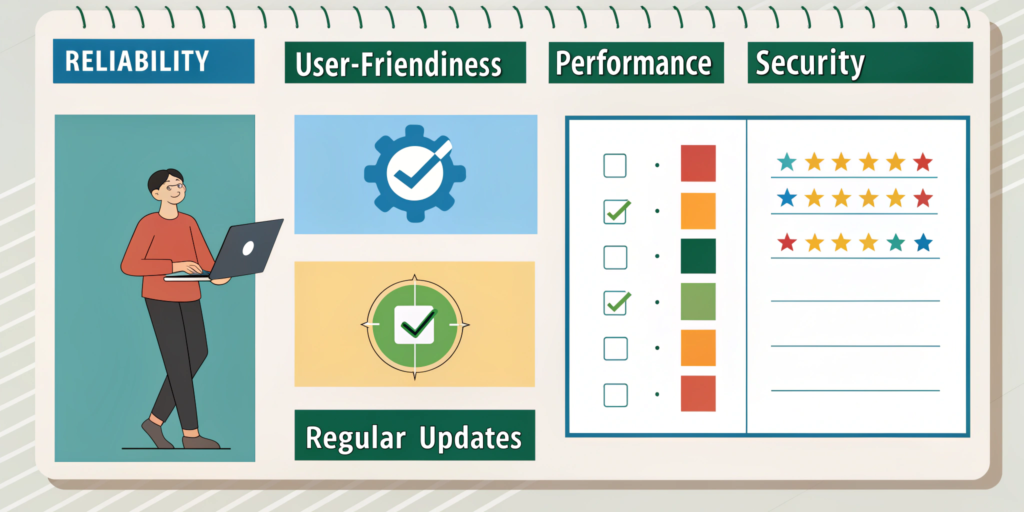
High-quality free software should:
Work smoothly on Windows 11
Be safe and regularly updated
Offer real value (not trial tricks)
Have a clean, easy interface
Avoid forced ads or malware
Free doesn’t mean low quality—if you choose wisely.
Best Free Software for Windows 11 (Top Picks)
1. Microsoft Defender (Best Built-In Security)
Why it’s essential:
Comes pre-installed with Windows 11
Real-time virus and threat protection
Lightweight and always updated
Best for:
Users who want reliable security without installing extra software.
Internal link: Best Antivirus Software for Windows 11
2. LibreOffice (Best Free Office Suite)
What it replaces: Microsoft Word, Excel, PowerPoint
Why users love it:
Fully free and open-source
Works offline
Compatible with Microsoft Office files
Best for:
Students, professionals, and home users.
3. VLC Media Player (Best Media Player)
Why it’s unbeatable:
Plays almost all video & audio formats
No ads, no spyware
Extremely lightweight
Best for:
Watching movies, tutorials, and media files smoothly.
4. 7-Zip (Best File Compression Tool)
Why it’s useful:
Compresses files efficiently
Supports ZIP, RAR, 7z, and more
Integrates with Windows right-click menu
Best for:
File sharing and saving storage space.
5. Google Chrome / Mozilla Firefox (Best Browsers)
Chrome Pros:
Fast performance
Excellent extensions
Firefox Pros:
Strong privacy features
Lightweight and customizable
Best for:
Everyday browsing, research, and online work.
6. GIMP (Best Free Photo Editing Software)
Why it stands out:
Powerful image editing tools
Photoshop-like features
No watermark
Best for:
Graphic design, thumbnails, and photo editing.
7. Clipchamp (Best Free Video Editor for Beginners)
Why beginners prefer it:
Built into Windows 11
Simple drag-and-drop editing
Free templates and stock assets
Best for:
YouTube videos, reels, and short edits.
Internal link: Best Free Video Editing Software for Beginners
8. Notion (Best Free Productivity Tool)
What it does:
Notes
Task management
Project planning
Why it’s popular:
Clean interface
Syncs across devices
Best for:
Students, freelancers, and planners.
Common Mistakes When Installing Free Software
Downloading from unofficial websites
Installing multiple tools with the same purpose
Ignoring setup options (bloatware)
Using cracked “premium” software
Internal link: Beginner Tech Mistakes to Avoid
Tips to Keep Free Software Safe on Windows 11
Download only from official websites
Keep software updated
Avoid unknown plugins or add-ons
Use Windows Security regularly
Smart choices keep your system fast and secure.
Is Free Software Safe for Windows 11?
Yes—when used correctly.
Safe free software:
Comes from trusted developers
Has frequent updates
Has clear privacy policies
Avoid tools that:
Ask for unnecessary permissions
Bundle hidden installers
Internal link: How to Identify Online Scams
FAQs
Q1: What is the best free software for Windows 11?
Microsoft Defender, LibreOffice, VLC, and Chrome are top essentials.
Q2: Is free software safe to use on Windows 11?
Yes, if downloaded from official sources.
Q3: Can free software replace paid programs?
For most daily tasks, absolutely.
Q4: Does free software slow down Windows 11?
Quality tools are lightweight and optimized.
Q5: Should I use cracked paid software instead?
No—cracked software is unsafe and illegal.