
Introduction
Your home Secure WiFi network is the gateway to everything digital—your phones, laptops, smart TVs, and even banking apps. I’ve personally helped users who had slow internet, unknown devices connected, or even data leaks—all because their WiFi was left unsecured with default settings. Many people assume WiFi security is complicated, but the truth is that a few small changes can dramatically improve safety.
Learning how to secure WiFi network at home protects you from hackers, freeloaders, and privacy risks. This guide explains WiFi security in plain language, with step-by-step instructions that anyone can follow—even without technical knowledge. If you use internet at home, these steps are not optional—they’re essential.
Why Home WiFi Security Is Important
An unsecured WiFi network can allow attackers to:
Steal personal data
Monitor browsing activity
Access smart devices
Slow down internet speed
In real cases, attackers often start with WiFi before targeting accounts.
Signs Your WiFi Network Is Not Secure
Unknown Devices Connected
Check router dashboard regularly.
Slow Internet Without Reason
Unauthorized users may be consuming bandwidth.
Router Using Default Login Details
Default credentials are widely known.
How to Secure WiFi Network at Home (Step-by-Step)
Step 1: Change Router Admin Username & Password
Why:
Default router logins are publicly available.
Tip:
Use a strong, unique password.
Step 2: Set a Strong WiFi Password
Best practice:
12–16 characters
Mix letters, numbers, symbols
Avoid names or addresses
Internal link: Best Password Managers for Beginners
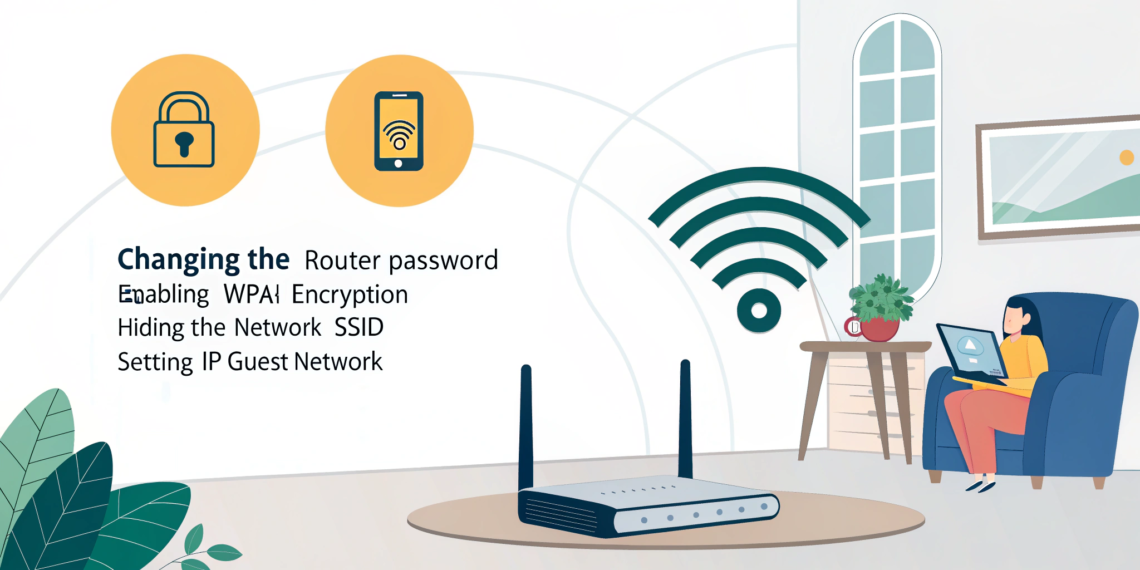
Step 3: Use WPA3 or WPA2 Encryption
Steps:
Router settings → Security
Select WPA3 (or WPA2 if unavailable)
Never use WEP—it’s outdated and unsafe.
Step 4: Rename Your WiFi Network (SSID)
Avoid personal info in WiFi name.
Bad: Ali_Home_WiFi
Good: Home_Network_21
Step 5: Disable WPS (WiFi Protected Setup)
WPS is convenient but insecure.
Internal link: How to Protect Personal Data Online
Step 6: Update Router Firmware Regularly
Firmware updates fix security vulnerabilities.
🔗 External reference: Router Manufacturer Support Pages
Step 7: Enable Guest Network for Visitors
Keeps your main devices isolated.
Common WiFi Security Mistakes to Avoid
Sharing WiFi password publicly
Using outdated routers
Ignoring firmware updates
Disabling firewall
Internal link: How to Identify Online Scams
Extra Tips to Make WiFi Even More Secure
Turn off remote router access
Use MAC address filtering
Place router centrally
Monitor connected devices monthly
Internal link: How to Secure Smart Home Devices
FAQs
Q1: Can someone hack my WiFi without password?
Yes, if encryption or router settings are weak.
Q2: How often should I change WiFi password?
Every 6–12 months or after sharing.
Q3: Is WPA3 better than WPA2?
Yes, WPA3 offers stronger encryption.
Q4: Should I hide my WiFi network?
It doesn’t add real security—strong passwords matter more.
Q5: Can WiFi hacking slow internet?
Yes, unauthorized users consume bandwidth.