
Introduction
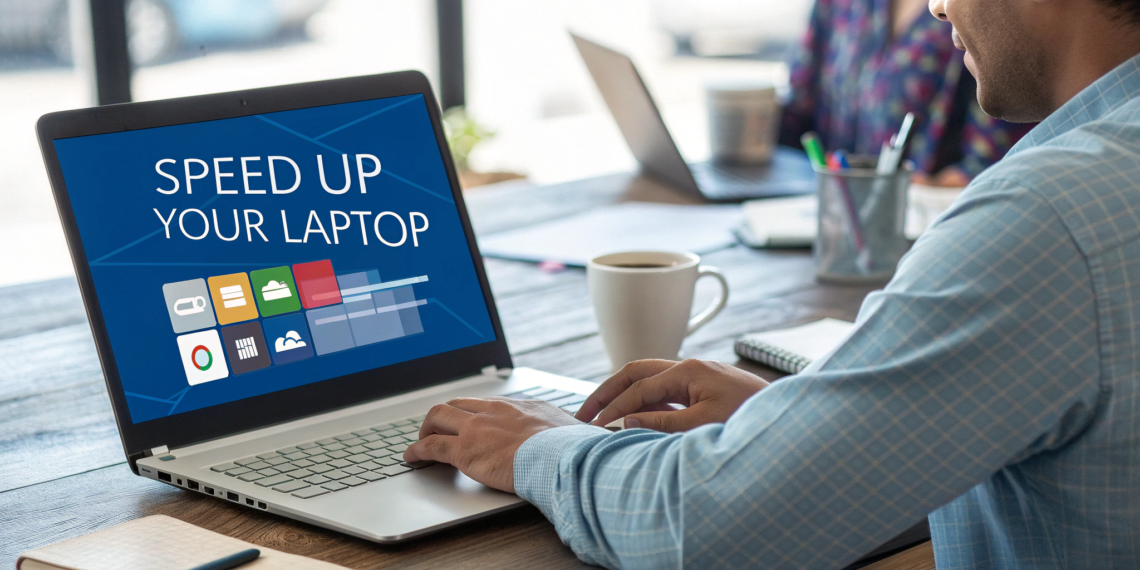
If your Windows 10 laptop on Windows has become painfully slow, you’re not imagining things. I’ve seen many laptops that were fast when new but gradually turned sluggish—taking minutes to boot, freezing during simple tasks, or lagging badly while browsing. The good news is that most slow laptop problems are software-related, not hardware failures.
From real-world troubleshooting experience, upgrading RAM or buying a new laptop is often unnecessary. Simple system tweaks, background app control, and proper maintenance can dramatically improve performance. This guide explains how to speed up a slow laptop on Windows 10 using safe, beginner-friendly steps that don’t risk your data. Whether your laptop is old or relatively new, these fixes can restore smooth performance and make daily use enjoyable again.
Why Is Your Windows 10 Laptop So Slow?
Understanding the cause helps apply the right fix.
Too Many Startup Programs
Apps launching at startup slow down boot time and performance.
Low Disk Space
Windows needs free storage to run smoothly.
Outdated Drivers
Old drivers cause performance bottlenecks and errors.
Malware or Unwanted Software
Hidden background processes consume system resources.
Windows Updates Running in Background
Updates may slow your system temporarily.
How to Speed Up a Slow Laptop on Windows 10 (Step-by-Step)
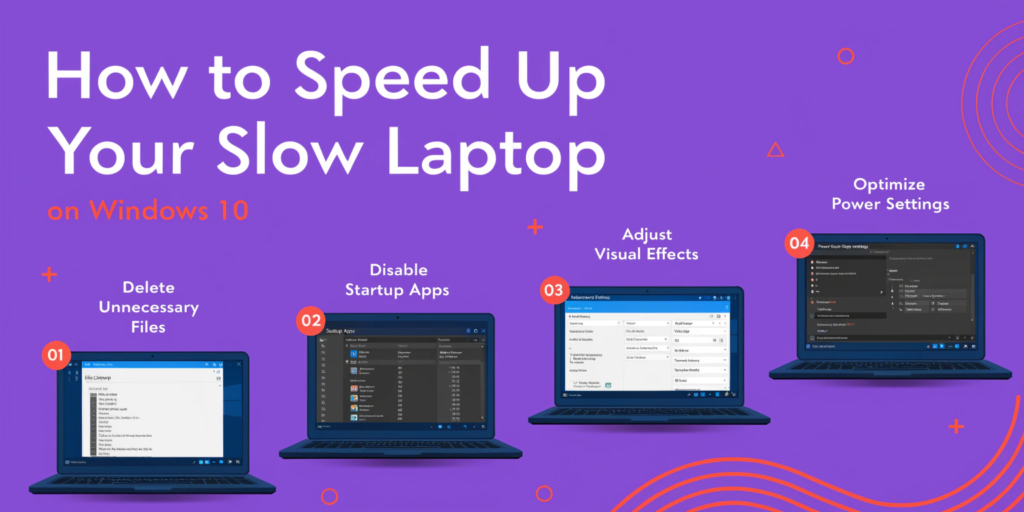
Method 1: Disable Unnecessary Startup Programs
Steps:
Press Ctrl + Shift + Esc to open Task Manager
Go to the Startup tab
Disable apps with High startup impact
From experience, this alone can cut boot time in half.
Method 2: Free Up Disk Space
Low disk space seriously affects speed.
Steps:
Open Settings → System → Storage
Enable Storage Sense
Delete temporary files and unused apps
Internal link: Best Cloud Storage for Personal Use
Method 3: Scan for Malware & Viruses
Malware silently slows laptops.
Steps:
Run Windows Security scan
Or use a trusted antivirus
Internal link: Best Antivirus Software for Windows 11
External reference: Microsoft Security – Virus Protection
Method 4: Update Drivers (Very Important)
Outdated drivers reduce performance.
Steps:
Right-click Start → Device Manager
Update display, storage, and chipset drivers
Internal link: How to Update Drivers in Windows 11
Method 5: Adjust Windows for Best Performance
Steps:
Search Performance
Select Adjust the appearance and performance of Windows
Choose Adjust for best performance
This reduces animations and improves responsiveness.
Method 6: Uninstall Unused Programs
Unused software runs background services.
Steps:
Settings → Apps → Installed apps
Remove programs you don’t use
Method 7: Check for Overheating
Overheating causes throttling.
Tips:
Clean laptop vents
Use laptop cooling pad
Avoid soft surfaces
Internal link: How to Fix Android Phone Overheating (related concept)
Method 8: Restart Windows Explorer
Steps:
Open Task Manager
Restart Windows Explorer
This refreshes system UI instantly.
Common Mistakes That Make Laptops Slower
Installing multiple antiviruses
Using “PC booster” scam apps
Ignoring updates for months
Running too many browser extensions
Internal link: How to Identify Online Scams
Advanced Tip (Optional but Powerful)
Switch to SSD (If Laptop Supports It)
From hands-on experience, replacing HDD with SSD gives the biggest speed boost—even on old laptops.
How to Keep Your Laptop Fast Long-Term
Restart weekly
Keep at least 20% disk space free
Update Windows monthly
Avoid pirated software
FAQs
Q1: Why is my Windows 10 laptop suddenly slow?
Sudden slowness is usually caused by background updates, startup apps, malware, or low disk space.
Q2: Can I speed up my laptop without upgrading hardware?
Yes. Most performance improvements come from software optimization, not hardware upgrades.
Q3: Does disabling startup apps improve speed?
Absolutely. Fewer startup apps mean faster boot and smoother performance.
Q4: How much free space should Windows 10 have?
At least 15–20% free disk space is recommended.
Q5: Will resetting Windows make it faster? Yes, but it should be a last resort after trying all fixes.